WhatsApp Broadcasts
How to Connect Your WhatsApp Number to Wedd.ai
A five-minute QR scan walkthrough for connecting your WhatsApp Business number to Wedd.ai — pre-checks, the step-by-step flow, what happens next, and the errors people actually hit.
By Wedd.ai Team · Updated August 3, 2026
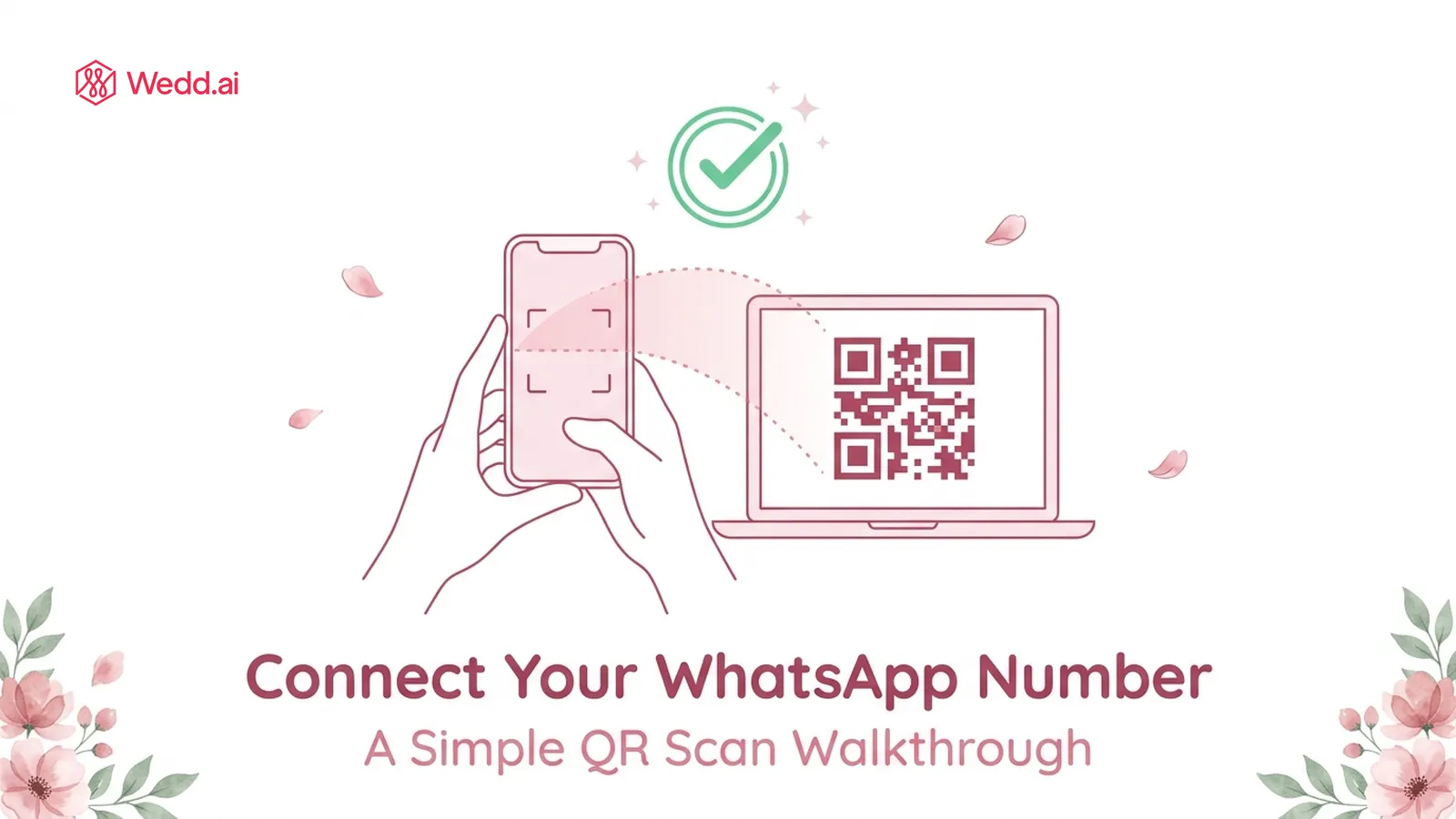
Quick answer: Connecting takes about five minutes. You start the connection in your Wedd.ai dashboard, Meta’s signup window shows you a QR code, and you scan it with the WhatsApp Business app on your phone. That’s the whole trick — no SIM swap, no code migration, and your chats stay exactly where they are.
This walkthrough covers everything from the pre-checks to the green tick of a successful connection, plus the handful of errors people actually hit.
Before you start
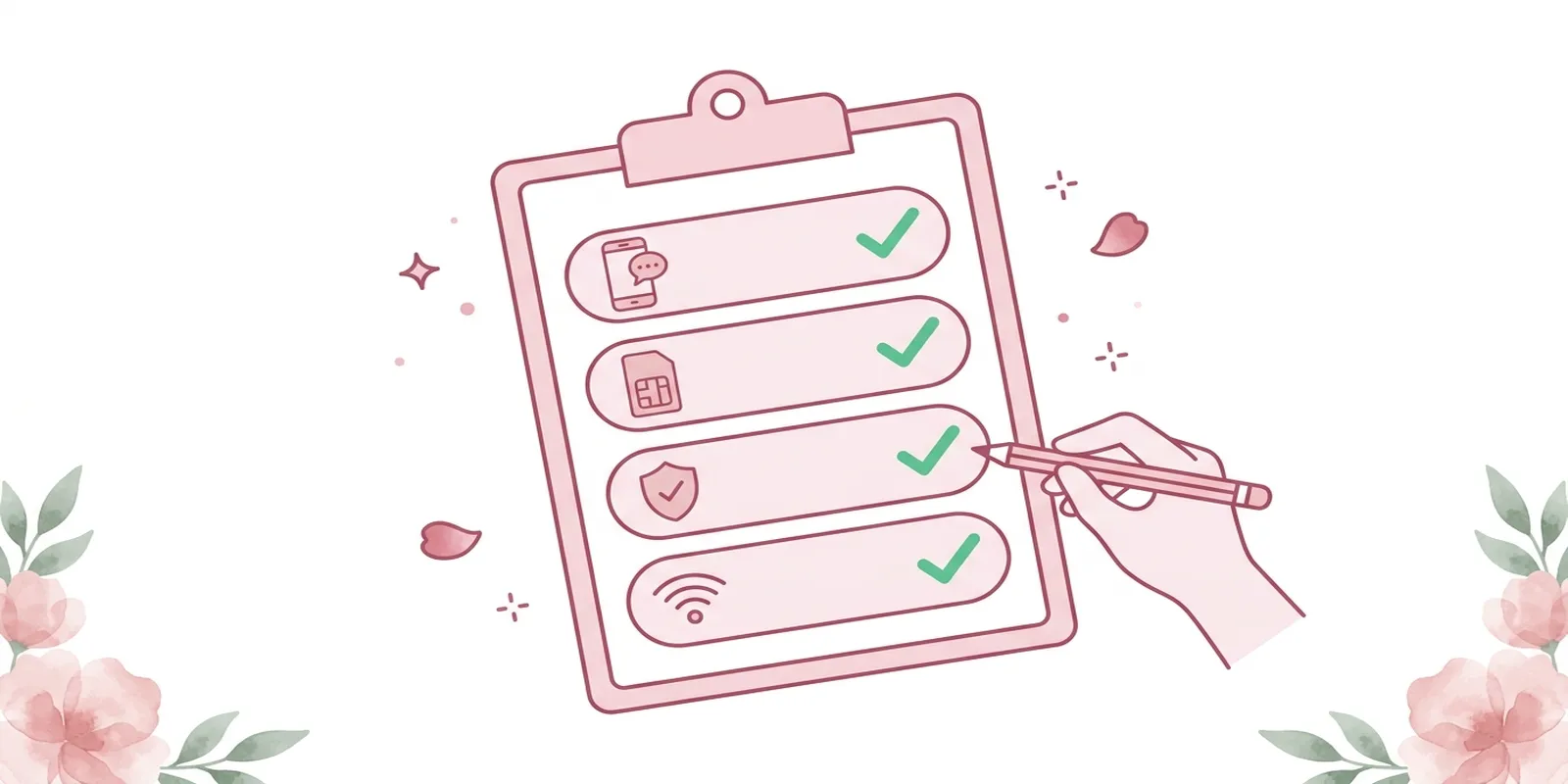
Have these four things ready:
- Your number on the WhatsApp Business app. Coexistence works with the free WhatsApp Business app, not the regular personal app. If your number is on personal WhatsApp today, that’s fine — see the note below, it moves over in minutes.
- The phone with that number in your hand. The QR scan and the confirmation both happen on it.
- An up-to-date app. Update the WhatsApp Business app from the Play Store or App Store before you begin; older versions don’t show the coexistence option.
- A stable internet connection on both the phone and the computer running your Wedd.ai dashboard.
Still on personal WhatsApp? Install the WhatsApp Business app, open it, and it will offer to move your number and chat history across. Everything transfers — chats, groups, media. Do this first, then come back here.
Connecting your number, step by step
-
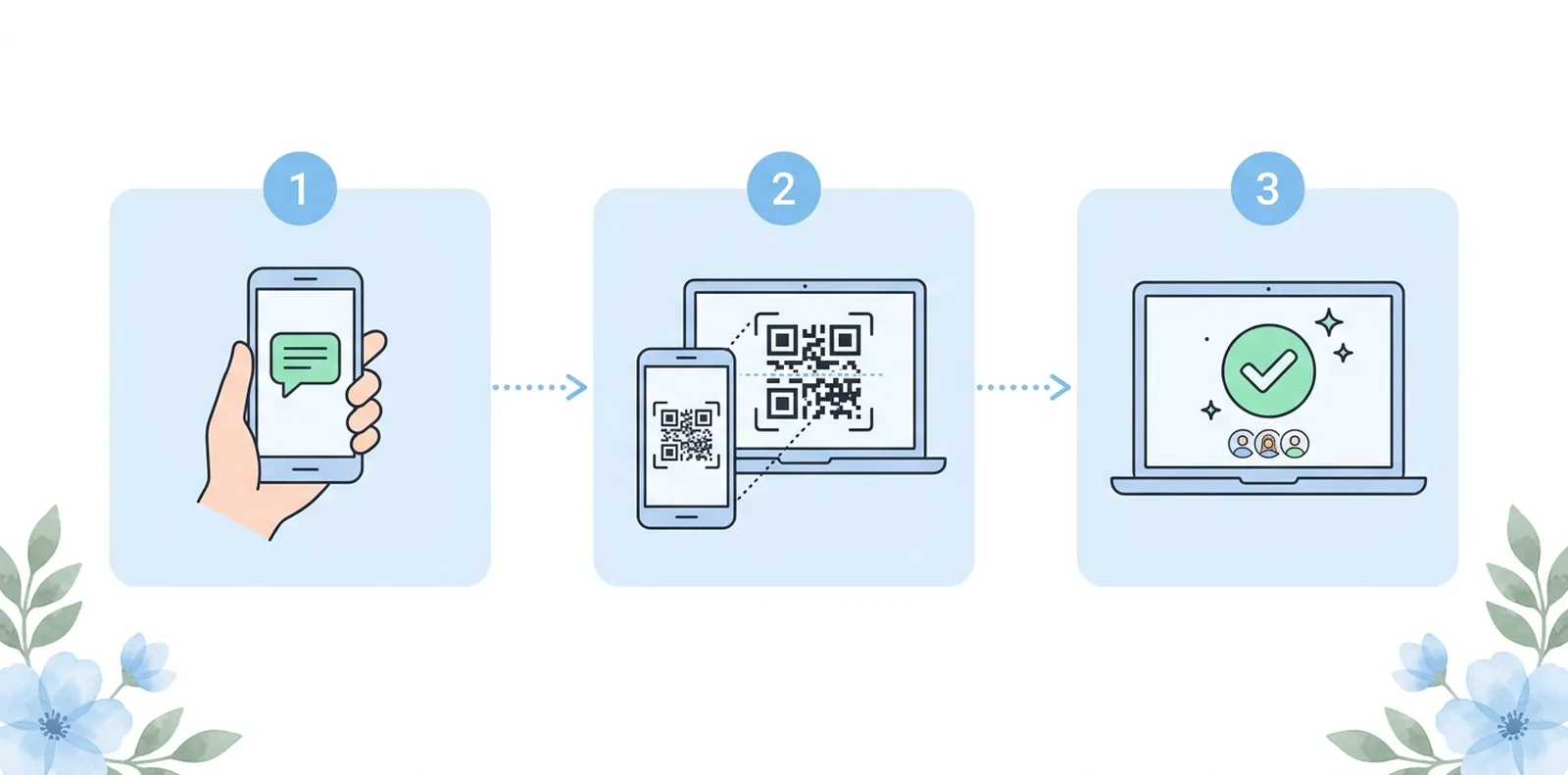
Sign in to Wedd.ai on a laptop or desktop and open Settings → WhatsApp connection. Click Connect my number.
-
Choose “Keep using my WhatsApp Business app.” This is the coexistence option. (The other path moves your number fully to the API, which most couples don’t want — it would remove WhatsApp from your phone.)
-
Meta’s window opens. This is WhatsApp’s own signup flow, not a Wedd.ai form. Log in with the Facebook account you want your WhatsApp Business account attached to, and confirm your business or event details when asked.
-
A QR code appears on screen. Leave it open. It refreshes every few minutes, so don’t worry if you’re slow — you can always regenerate it.
-
On your phone, open the WhatsApp Business app and scan the code: go to Settings → Linked devices → Link a device, then point the camera at the QR code on your computer screen.
-
Approve the connection on your phone. WhatsApp shows you exactly what’s being connected and asks whether to share your existing chats and contacts with the platform. Sharing contacts makes guest-list building faster, but it’s your call — the connection works either way.
-
Wait for the green confirmation. Your Wedd.ai dashboard will show the number as connected, usually within a minute. Send yourself a test message from the dashboard to see it arrive from your own number.
That’s it. Your phone keeps working as normal, and Wedd.ai can now send your invitations and collect RSVPs officially from your number.
What happens right after connecting
A few things are useful to know in the first day or two:
- Nothing changes for your guests. Messages from the dashboard arrive from your usual number, name, and photo.
- Your sending limit starts modest and grows. New WhatsApp Business API numbers can typically open conversations with about 250 new people per day at first; the ceiling rises automatically as guests receive and read your messages without complaints. Plan your first big invitation batch with this in mind — Wedd.ai paces large sends for you.
- Bulk messages need an approved template. Free-form replies work instantly, but broadcast-style messages (invitations, reminders) go through Meta’s quick template approval. Wedd.ai handles the submission; approval usually takes minutes to a few hours.
Troubleshooting
The QR code expired before I scanned it. Click regenerate in the connection window and scan the fresh code. Nothing was lost.
I can’t find “Linked devices” or the scan option. Update the WhatsApp Business app to the latest version, then reopen Settings. On very old versions the coexistence flow simply doesn’t appear.
It says my number is already in use with another provider. Your number was previously registered to the WhatsApp Business API through a different platform. Disconnect it there (or ask that provider’s support to release it), wait a few minutes, and retry.
I’m on the regular WhatsApp app, and scanning didn’t offer the connection. The personal app can’t join coexistence. Move your number to the WhatsApp Business app first (see “Before you start”), then scan again.
The confirmation never turned green. Check that the phone had internet during the scan, then disconnect and retry from step 1. If it fails twice, contact Wedd.ai support with a screenshot of the last screen you saw — that’s usually enough to spot the issue.
Related articles
Frequently Asked Questions (FAQs)
Does my phone need to stay on for Wedd.ai to send messages?
No. Once connected, dashboard messages are sent through WhatsApp's cloud API, not through your handset. Your phone can be off, in flight mode, or in a lehenga clutch during the sangeet — invitations and reminders still go out on time.
Will connecting log me out of WhatsApp Web or other linked devices?
No. The connection adds Wedd.ai alongside your existing linked devices; it doesn't replace them. WhatsApp Web, desktop, and your phone all keep working as before.
Will my chats disappear or move anywhere?
No. Coexistence adds a second, official lane for your number — it doesn't relocate anything. Every chat, group, and photo stays in the app on your phone, and stays there even if you disconnect from Wedd.ai later.
Can I disconnect after the wedding?
Yes, anytime, from Settings → WhatsApp connection → Disconnect in your dashboard, or from Linked devices in the app. Your number returns to app-only use immediately, and your personal WhatsApp is unaffected.
Is scanning the QR code safe?
Yes. The QR flow is Meta's own onboarding for the WhatsApp Business Platform, and the approval screen appears on your phone where you can read exactly what's being shared before you accept. Wedd.ai, as a Meta tech provider, never sees your password or your personal chats.